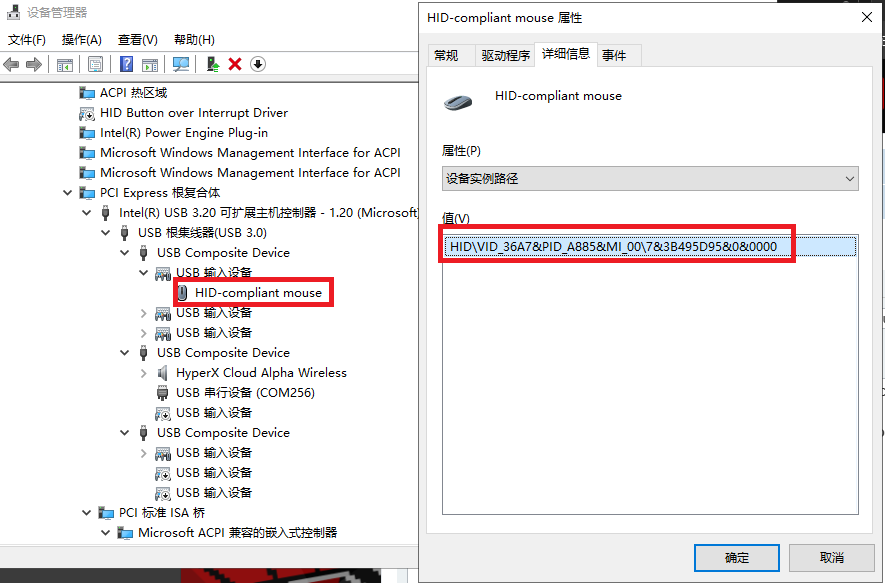
My friend and I found that HKEY_LOCAL_MACHINE\SYSTEM\ControlSet001\Services\mouclass\Enum, this registry contains the mouse priority, and changing it will affect the feeling of the mouse.The mouse is lighter, smoother, and starts faster I am 100% sure that this is not a placebo, and it can work in real time like win32.Maybe this is one of the reasons why the mouse feels different every time you boot up. If you have many device instance paths for your mouse in this registry, The order in the registry will be disrupted when you restart the computer or unplug the relevant USB, which will cause the mouse to feel different.
In the device manager, you can find the device instance path of your mouse,
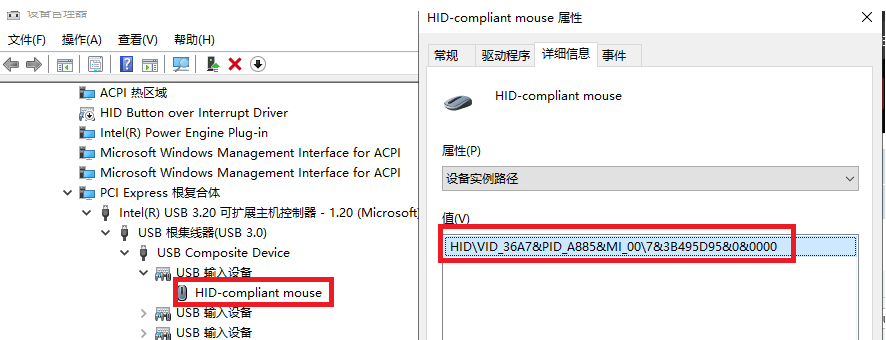
You will find that it also appears in the registry HKEY_LOCAL_MACHINE\SYSTEM\ControlSet001\Services\mouclass\Enum,

You just need to change the device instance path name of your mouse to 0 in the registry. The optimization is completed, just like in the picture

As for ACPI\CUST0001\4&35cf9452&0, I deleted it because it is the touch screen of my laptop. When it is 0, it will affect the response speed of my mouse, but don't worry, these registry deletions or changes will be restored after restarting. You need to make a batch file to automatically change it when booting
Similarly, the keyboard part of the mouse will also affect the feel of the mouse,
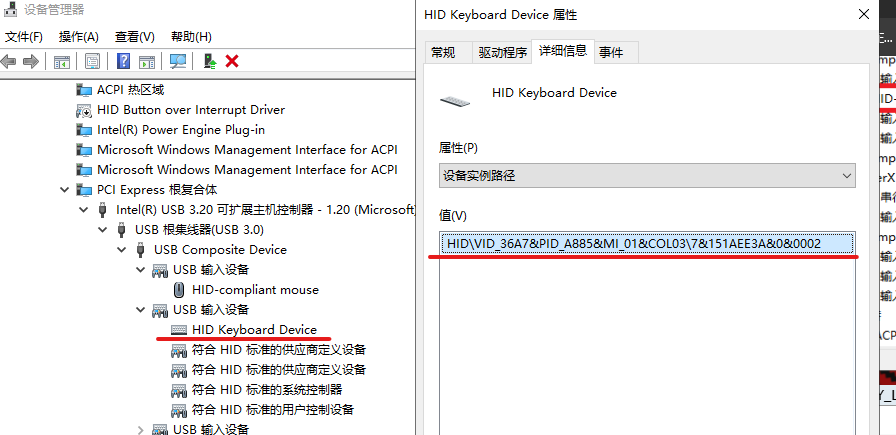
HKEY_LOCAL_MACHINE\SYSTEM\ControlSet001\Services\kbdclass\Enum
You only need to set the keyboard part of the mouse to 0 and the normal keyboard to 1 to complete the optimization, as shown below

Count and NextInstance represent the number, I changed it to the number after deletion or change. For example: there is only one REG_SE named 0, then Count and NextInstance are changed to 1
My guess is that the priority is interrupted by the order in the registry, and the top ranking is interrupted first, which leads to the change in feel caused by different priorities,
To summarize
1: Check the device instance path of the mouse and keyboard part of the mouse in the device manager
2: Change them to 0 in the registry mouclass\Enum and kbdclass\Enum
3:Change the Count and NextInstance values to match the number of REG_SZ
You can make registry changes while the game is running, and it will take effect immediately without restarting the computer. You can experience the changes through a game. It should be noted that after restarting the computer, the changes in the registry will be restored to the original state, and you need to change the registry again. You can create a batch file to automatically change it when the computer is turned on.