
Most Input Lag is caused by your GPU, Monitor, Mouse and Keyboard. Then Comes CPU and then after all that comes Windows, Timers etc. (which have a very small impact on latency).
Your GPU/FPS is the main reason! So, you wanna do everything to optimize the GPU/FPS. In many tests shown, your GPU will cause TONS of lag when its maxed out (95%-100% Usage). When your GPU is maxed out, your CPU will render more Frames then your GPU needs and it will store Frames in a Buffer, which will cause Noticable Lag.
There are 3 Things you can do to avoid this and safe minimum 10-20ms Lag!!! (on older setups even more)
1. Cap FPS with a Ingame Frame Limiter
Why ingame frame limiter? Because Frame Limiters like RTSS cant reduce the Buffer Queue. The Frame Limiter needs to be built into the Game Engine, in order to work correctly. This is the best way to reduce lag.
2. Use Nvidia Reflex with Uncapped FPS
If your game dont have a Frame Limiter but Nvidia Reflex, then use Reflex. Nvidia Reflex will reduce the Buffer Queue automatically when your GPU hits 95%-100% Usage. This is good if you run your game uncapped to take advante of higher FPS but you still want to maintain low Lag. Take note that Reflex is not as efficient as limiting FPS with a Ingame Frame Limiter.
3. Reduce Settings/Resolution
If your game dont have a Frame Limiter or Reflex, simply reduce your Settings to the lowest possible and consider changing the Resolution. This will reduce your GPU Usage. Of course you get more FPS too. But what I mean by that, your GPU wont hit 95%-100% as often as before!
-FPS/Frametimes
As everyone knows higher FPS is better. But Frametimes are very important too! Opimistically you want to have stutter free Gameplay in order to reduce lag. I encountered many Games that literally introduce Stutters when aiming down sight, which will cause Input Lag. This happens alot of times! Set your CPU to fixed Clock Speeds, Disable CPU C-States, Disable HPET and consider Overclocking to reduce Stutters. Also creating Partitions and seperate Windows from your Games will help.
You can also just cap your FPS to get a flat Frame Time Graph/Stutter free Gameplay.
In my case, stutters were the big reason why I felt alot of Input Lag. Even reducing games with RTSS felt so much better and more responsive, even when my GPU still ran at 98% Usage!
-Monitor
Use a high Hz Monitor. Just by using 120 FPS at 120HZ reduces Lag by around 10ms-20ms compared to 60FPS on 60HZ. Also high Hz monitors generally have less Processing Lag and less Motion Blur then most 60HZ Monitors. Even when running them at low Hz.
-Mouse
Mice have Sensor Lag, Polling Rate/DPI Lag. A gaming mouse needs to process informations before they get send to your PC, which will introduce processing lag. So by choosing a good Gaming Mouse with a high quality Sensor should have very low latency.
Best Example: Some very expensive Benq Zowie Mice have around 10ms, I repeat 10MS! Lag. Because they have a bad PCI or Sensor.
This shouldnt be the case for most newer Logitech/Razer/Corsair Mice. Just avoid brands that arent specialist on Gaming Mice and such type of products.
Beside the Sensor Lag, DPI is important too. 400-800 DPI has around 2-3ms additional lag compared to 1600 DPI. Use 1600 DPI.
And of course Polling Rate. Avoid 125hz or 250hz. Use 500-1000hz.
-Keyboard
Same as Mice, Keyboards have lag too. Use a low latency keyboard with 500-1000hz. It can make a difference on aiming, because often times you press A and D to correct your Mouse aim. But this has a very small impact and its not very important. Just use a relatively new Gaming Keyboard and youre safe.
In terms of Windows "Tweaks", alot of Tweaks are useless and can make things even worse. The most effective ones have a impact on FPS and thats why Latency get reduced. For example when debloating Windows, you will have less Processes running in the backround, which will take some load off your CPU which means = More FPS in games = Less Latency. Or when you disable HPET in OS you will get less Frametime fluctuations = more stable FPS = more stable Latency. So if you wanna see if a tweak helped reducing Latency in games, simply run a benchmark and watch if you get better AVG, MIN and 1% Low and 0.1% LOW FPS)
Here is a list of the most effective Windows/Nvidia Tweaks:
1. Debloat Windows 10/11. Simply type in the command in CMD Admin, then use "tweaks" and click "desktop" under Recommendations: https://www.youtube.com/watch?v=vXyMScSbhk4 !!!WARNING!!! ONLY DEBLOAT WINDOWS IF YOU KNOW WHAT YOURE DOING.
After debloating windows, you wont be able to use Windows Search. But you can enable it afterwards.
2. Download Snappy Drivers and update all your drivers you need. Windows is doing a poor job in updating drivers and sometimes download the wrong ones will cause Stutters/Latency. Make sure you do this, before installing Graphic drivers/other drivers.
https://www.youtube.com/watch?v=5ckOWXGDL34
3. Uninstall your Graphic Drivers with DDU and strip your driver with NVCleanstall. Easy Tutorial here:
https://www.youtube.com/watch?v=7EZvnVr-Sug
4. Download NVProfileInspector and follow this Tutorial: https://www.youtube.com/watch?v=KWEPjoit1_E
5. Disable Notifications/Privacy Settings inside Windows Settings. https://www.youtube.com/watch?v=U9kFXnomRWQ
6. Setup partitions for gaming and OS (you dont wanna have interference between OS and Games. This tweak fixed all my stuttering).
7. Set GPU to MSI Mode (use MSI Utility). And set only your GPU to "high" under "interrupt priority". https://www.youtube.com/watch?v=zSzQ-NTpqWA&t=2s
8. Bind your GPU and USB Controller to different Cores via Interrupt Affinity Policy Tool.
!!! WARNING !!! Only do this, if you use LatencyMon and you saw unusual High DPC Spikes on specifik drivers. If you have good LatencyMon Results by default, DO NOT use Interrupt Affinity Policy Tool. If you just randomly put drivers on different cores, without carefully analyzing LatencyMon results, you get a negative impact on performance.
9. Disable HPET trough Windows. Little explanation and tutorial here: https://www.youtube.com/watch?v=TF-jpouz7b8
EDIT:
I would recommend putting the interrupt affinity only to physical cores, as it further reduces stutters and latency. You can do that, regardless if youre using Hyper Threading or SMT.
For HPET, just disable HPET trough device manager and apply the Commands, restart your PC. If you have Windows 10 version 1905 and below, you have to use Timer Resolution and force the Timer to 0.5ms after applying the HPET tweak.
But in the newer Windows Versions this has been fixed and you dont have to use Timer Resolution!
Another important Tweak that came to my mind. You want to use your USB Ports that are directly connected to your CPU. The Ports that go trough your Chipset can mess with latency. You will need to look into your Motherboard Manuals for that under "USB". And there you see your ports that go to CPU and the ones taht go trough your Chipset.
Latency Reduction Guide
Latency Reduction Guide
Last edited by FPSMaster on 21 Jan 2023, 14:22, edited 1 time in total.
Re: Ultimate Latency Reduction Guide
Another interesting thing I found out. With the latest tests a good alternative Frame Cap to RTSS would be the driver built-in Frame Limiter by Nvidia (inside the Nvidia Control Panel). It introduces small Frametime Fluctuations but delivers lower/stable Lag.
Re: Ultimate Latency Reduction Guide
Thanks for the post, what is the absolute optimal setup to have though?
My rig can hit 250fps + 1% lows on overwatch, if I run uncapped.
Capped @ 280 my monitors max frame rate is around 120fps for some reason.
If I run uncapped, no gsync/vsync etc with 1% lows around 30fps less than max refresh rate am I running my optimal setup?
Around 60% gpu and cpu usage.
My rig can hit 250fps + 1% lows on overwatch, if I run uncapped.
Capped @ 280 my monitors max frame rate is around 120fps for some reason.
If I run uncapped, no gsync/vsync etc with 1% lows around 30fps less than max refresh rate am I running my optimal setup?
Around 60% gpu and cpu usage.
-
Chief Blur Buster

- Site Admin
- Posts: 12146
- Joined: 05 Dec 2013, 15:44
- Location: Toronto / Hamilton, Ontario, Canada
- Contact:
Re: Ultimate Latency Reduction Guide
[Quote-reply shortened]
Your one-sentence-reply post was deemed a forum rule violation and deleted by the forum/moderators, not by the original user.
We've got a famously enforced "Be Nice" forum rule to prevent us from becoming Twitter/Facebook/4chan/8chan/whatnot. In some cases sometimes rude/bash/dismissor 1-sentence-reply posts are deleted without warning, especially if it's a large quote-reply post with only a rude one-sentence reply. For people who spent a long time writing their posts (like the OP probably did), a bit more restraint is usually done (warning is executed), respecting the large amount of effort the user wrote in their post, but sometimes short posts/replies are deleted without warning.
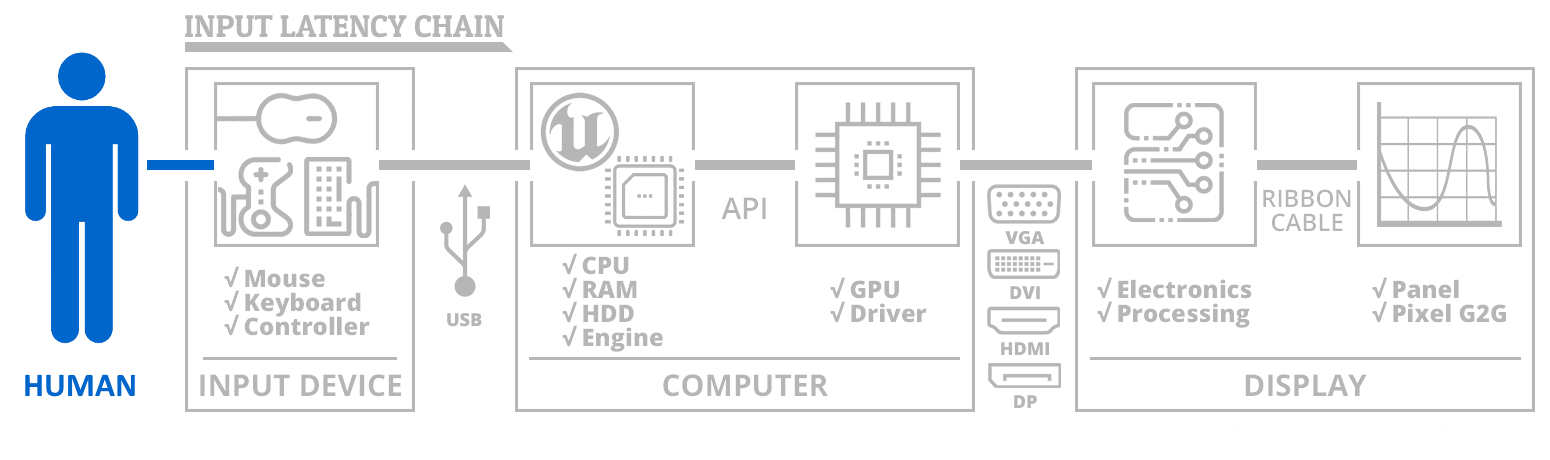
While lag problems is hard, there is definitely some lineitem legitimacy in the OP's post, even if it is not a 100% latency success. Latency is a horrendously complex chain that may or may not involve the OP's issues, nor the lag issues you know about. Even our grossly simplified diagram is less than 0.1% of lag complexity and the zillions of causes. However, lineitems in this guide appears to be useful, even if the word "Ultimate" word may be in dispute; We welcome the effort that our end users do to write guides like this, even if imperfect.
As a general rule of thumb, forum rules are usually enforced in the favour of the original thread poster. Create a new thread if you want a little more rule-enforce favoritism (within reason). Like a "Lamenting The Imperfect Art of Trying To Troubleshoot Black Box Latency Problems" thread, or whatnot. That's fair game as long as it's not threadcrapping a well-intentioned user's thread.
Head of Blur Busters - BlurBusters.com | TestUFO.com | Follow @BlurBusters on: BlueSky | Twitter | Facebook

Forum Rules wrote: 1. Rule #1: Be Nice. This is published forum rule #1. Even To Newbies & People You Disagree With!
2. Please report rule violations If you see a post that violates forum rules, then report the post.
3. ALWAYS respect indie testers here. See how indies are bootstrapping Blur Busters research!
-
PunksOnHope
- Posts: 36
- Joined: 18 Jan 2023, 07:47
Re: Ultimate Latency Reduction Guide
I have a similar issue resulting from latency or some weird hardware configuration issue. I tried to make a post but it seems it was denied for approval. If some of the veterans here could give me a hand it'd be very much appreciated thank you to anyone concerned. Overwatch has been my game of choice for 6 years and it sucks that my system makes the game unplayable.
-
Chief Blur Buster
- Site Admin
- Posts: 12146
- Joined: 05 Dec 2013, 15:44
- Location: Toronto / Hamilton, Ontario, Canada
- Contact:
Re: Ultimate Latency Reduction Guide
Your post definitely wasn't denied -- your post is publicPunksOnHope wrote: ↑18 Jan 2023, 16:34I have a similar issue resulting from latency or some weird hardware configuration issue. I tried to make a post but it seems it was denied for approval. If some of the veterans here could give me a hand it'd be very much appreciated thank you to anyone concerned. Overwatch has been my game of choice for 6 years and it sucks that my system makes the game unplayable.
New forum member posts are manual post-approve, since currently humans are better spam filters, especially since the spammers have started using AI and machine learning to post fake posts / posts later get edited to advertisements. So when you posted, your post did not show up right away until a moderator approved it.
Head of Blur Busters - BlurBusters.com | TestUFO.com | Follow @BlurBusters on: BlueSky | Twitter | Facebook
Forum Rules wrote: 1. Rule #1: Be Nice. This is published forum rule #1. Even To Newbies & People You Disagree With!
2. Please report rule violations If you see a post that violates forum rules, then report the post.
3. ALWAYS respect indie testers here. See how indies are bootstrapping Blur Busters research!
-
PunksOnHope
- Posts: 36
- Joined: 18 Jan 2023, 07:47
Re: Ultimate Latency Reduction Guide
ok thank you i had no idea.....AI really is ruining the world lmao
-
Chief Blur Buster
- Site Admin
- Posts: 12146
- Joined: 05 Dec 2013, 15:44
- Location: Toronto / Hamilton, Ontario, Canada
- Contact:
Re: Ultimate Latency Reduction Guide
On the other hand, this deafie (me) gets AI-based Live Closed Captions for all my FaceTime/Google/Facebook calls now thanks to iOS 16.1+ Live Caption and Android 10+ Live Caption.PunksOnHope wrote: ↑18 Jan 2023, 18:25ok thank you i had no idea.....AI really is ruining the world lmao
I also utilize text-based searching to find specific lost images in my 50,000-image-filled smartphone. I can enter "car" or "bicycle" or "dog" and it will instantly find my photographs containing these objects. Both Apple/Google OS now has this AI-based image searching built into their Camera Rolls now if I tap the search button on a smartphone equipped with neural processing unit (newer Apple and Qualcomm CPUs). I can even type in "dog" + "name" + "name" to search for photos containing the specific 2 people and a dog. It's amazing how fast I can find that 1 photo out of 50,000 now. If you've got a new $1000 smartphone instead of a $100 smartphone, give your phone's brand new AI-based image search by text query a try.
And copying and pasting text from a photo to an email works seamlessly now since the latest phone updates have made all text in all photos copy and pasteable. This is thanks to AI-based OCR that automatically runs in milliseconds everytime you put a finger on a photo and start trying to copy text as if it was text instead of image. Or it's already auto-scanned upon taking photo adding photo to the camera roll, and added to a local metadata search index file for instant text-searching/text-copying/object-name-searching of camera roll.
Also, I can now point at oblique angles at damaged QR codes that are oddly lit/shadow/gradient lighting, that are 10 feet away displayed on a sign I don't feel like walking to; thanks to AI-based QR code recognition that increases QR scan reliability by >10x. Kinda helped by the pandemic boom of QR-based restaurant codes and other such, reducing QR scan frustration.
I guess that makes AI even. Good & bad uses.
Sorry about the offtopic tangents, just sharing the good & bad sides of AI as it affects me (and this site).
Head of Blur Busters - BlurBusters.com | TestUFO.com | Follow @BlurBusters on: BlueSky | Twitter | Facebook
Forum Rules wrote: 1. Rule #1: Be Nice. This is published forum rule #1. Even To Newbies & People You Disagree With!
2. Please report rule violations If you see a post that violates forum rules, then report the post.
3. ALWAYS respect indie testers here. See how indies are bootstrapping Blur Busters research!
Re: Ultimate Latency Reduction Guide
No matter what other problem you have, there is a clear defined pc hardware/software chain that creates lag.
Imagine you have a car... you can have the best car in the world and you wont reach light speed. There is a clear limit, even the best PCs have small amount of lag. But you can tune your car to reach higher speeds etc.
This is a guide for generel type of use and these are the most important tweaks to optimize your setup. No matter how much lag you have, these settings will reduce it. May it be 10ms, or 20ms... i dont care how much. What is clear, and 1000 tests proof my points, these steps will help you.
I saw many people in this forum, complaining about lag with a GT1030 and 2 cores. You can move to another house with better Elictricity/Clean Elictricity and you will still get tons of lag, simply because your hardware cant keep up.