axaro1 wrote: ↑17 Aug 2020, 06:23
Due to having every single discussion about this monitor scattered around many different and often unrelated threads I decided to create this thread with the sole purpose of sharing settings and tips for the VG259QM.
- OD120
I'll start by sharing a
secret overdrive.
As a premise I want to specify that this secret overdrive doesn't scale linearly in terms of overshoot,
it actually provides less overshoot than OD80 and OD100,
this is extremely good at 240hz,
at this refresh rate OD60 provides no overshoot but slow dark transitions and OD80 has no ghosting but noticeable overshoot.
Now take the best from OD60 and OD80 and you'll get OD120, it is something in between these two overdrives,
the perfect sweet spot,
there is no ghosting regardless of the speed of the ufo(I generally test at 1440pps to make sure that fast transitions are inside the 240hz window)
and the amount of overshoot is noticeably lower than with OD80.
OD120 is achievable by entering the service menu ( press the power button and hold menu (5-way), then press menu again and it will pop up on top left, there will be a small "F" for the service menu, click on it)

Now go UP with the 5-way joystick (If you scroll down it will change GameVisual Mode to sRGB->9300k->....) and click on
OD Strong Weak, if it's ON by default set it to OFF and back to ON.
OD Strong Weak OFF =
OD0
OD Strong Weak ON =
OD120

Notice the buggy overdrive bar


The firmware used for this guide is MCM104, newer products are shipped with MCM105, there are reports of early batches running MCM103, none knows the actual difference between these 3 firmwares and not a single firmware has been publicly released by Asus as of 17/08/2020
On a side note I'd like to add that I feel like this overdrive setting feels more responsive than OD60 and OD80, it feels like OD100 in terms of input lag but it can be (and most likely is) just placebo.
It was interesting to see the values changing when setting different PreEmphasis and Voltage Swing levels, altough I don't see any practical benefit in using these two settings unless you are using a cheap or long Displayport cable
- 240hz 10bit trick
As stated in many reviews the VG259QM is natively an 8 bit panel
but it can display 10 bit (8bit + FRC) at 240hz with a simple trick.
1)Open CRU
2a)f you are currently running your monitor at 240hz click on your
Detailed Resolution and set the
Timings to
Automatic - LCD Reduced.
2b)If you are currently running your monitor at 280hz you have to click on
Extension Blocks, click on the 239.XXX
Detailed Resolution and set it to
LCD Reduced.
You cannot run 10bit at 280hz but you can switch Windows refresh rate to 240hz (without the need to disable Overclocking in the OSD) to automatically switch from 280hz 8 bit to 240hz 10 bit.
3) Reboot or run restart/restart64 which are contained in the CRU pack.
I don't have an Nvidia GPU so I don't know if you have to manually enable 10 bit after this, if you have an AMD card open the Radeon Software -> Display-> Color Depth and make sure that it's 10bit (if you want to use it for games go into Games -> Global Graphics -> Advanced -> ENABLE 10 bit Pixel Format.
Now you can watch 10 bit x265 content with no banding at all without having to rely on dithering that is just an ugly workaround to make 8 bit look slightly better.
I highly recommend using something like MPC-HC/MPC-BE +
MadVR to make good use
high bitdepth processing, trust me, you'll stop downloading x264 after this trick!
- For Amd GPU owners...
The native Freesync range of this monitor is limited to 48-240, you need to manually set it to 48-280 with CRU to make it work above 240hz.
This monitor is still not Freesync certified to this day, the 144hz version of this exact same monitor, the VG259Q, is Freesync certified.
Keep the thread civil with constructive informations and feel free to share everything, from 280hz windows/game implementation to more technical informations.
EDIT
This edit is a duplicate of my comment which I put in the main post to make it easier for users to get the info without scrolling pages
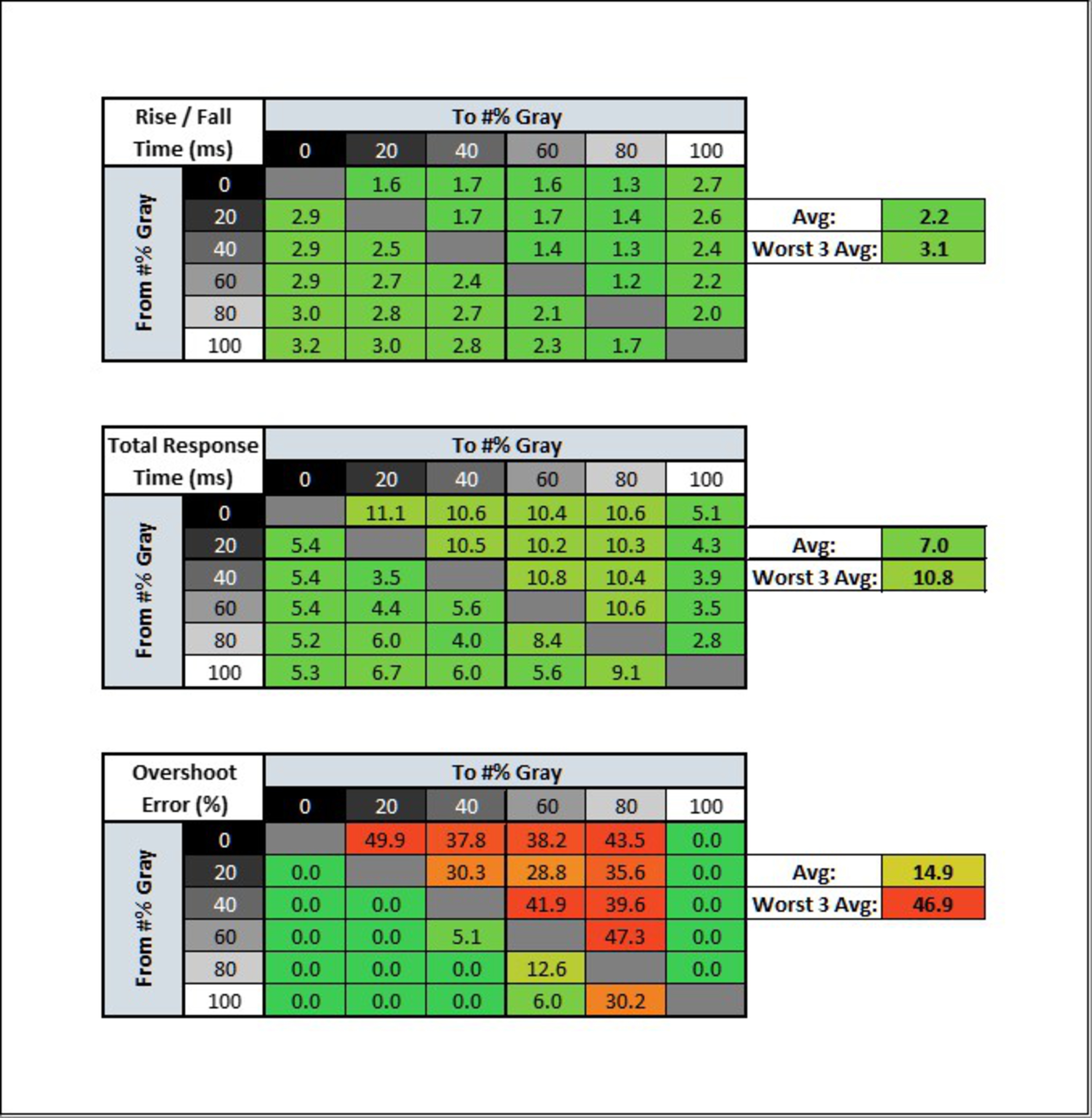
Rtings tested OD120:
Update 08/28/2020: There's a hidden overdrive setting of '120'. It can be accessed through the service menu, as described here. Despite the name, it's actually between the 60 and 80 settings, but we don't recommend it, as there's too much overshoot.
They tested at 280hz and the % inside the 3.57ms window is actually 100%, the amount of overshoot is just
8.6%(
which is inflated by a single bad transition from 0 to 20) , which is actually quite good and barely noticeable both ingame and during motion testings.
I wasn't having any issues running OD120 at 240hz, which was causing more overshoot than at 280hz due to overdrive scaling and I didn't have any problem using it 24/7.
90% of the people running this monitor at 280hz already used OD80 because it was way clearer than OD60, the average overshoot of OD80 is
19.3% which is 2x more than OD120 and it affects 46% of transitions compared to 30% of OD120,
but with 2 to 5 times higher overshoot levels in each transition.
You can actually enable shadow boost to speed up this single transition (I recommend
level 1), try it yourself with an ufotest!
Level 1 is enough, going higher is pointless unless you use Shadow Boost to have a competitive advantage, I used Frog Pursuit's traffic light to confirm that
LvL1 completely deny color inversion due to overshoot, making OD120 with Shadow Boost LVL1
both ghosting free and overshoot free, this is the perfect overdrive tweak.
By increasing Shadow Boost it's like if you are shifting Start(%) and End(%), 0 to 20 which is the worst transition will behave more like 10 to 30 or even 20 to 40, noticeably reducing artifacts without worsening overdrive performance.
I still 100% recommend OD120 at both 240 and 280hz, unless you are
extremely sensible to overshoot.
OD120
 Now compare it with OD80
 These are my final settings
, I will not change them anymore since I found the sweetspot:
-280hz
-Adaptive Sync OFF (It truly comes down to personal preference, I find that at 280hz tearing is very very hard to notice, much less than at 240hz)
-OD120
-Shadow boost LVL1
-FPS Mode (saturation 47)
-Brightness 70-90 during the day, 45-60 when it's dark.
-Contrast 80
-VividPixel lvl 50 (or 25 depending on personal preference)
If you want to double check that your monitor is running at 10 bit open the OSD -> System Setup -> Information -> Color Depth, it should be set to 10 bps.
This is as good as it can get on this monitor,
an average of 2.6ms of Rise/Fall with no overshoot at 280hz is peak performance for high refresh rate IPS panels