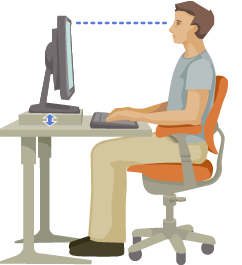
Martinso, here's the thing - technically, this is indeed "normal" for a TN panel, but it also may depend on your settings/calibration and of course your viewing angle. The way I look at my screen is like on this image:
http://blog.codinghorror.com/content/im ... 70c-pi.png - I find that in this position, I don't see any issues at the top, and even though it's a little bit brighter at the bottom, I don't notice it. If I'd put the monitor higher so that I look directly at the center of it - then it can get bad because all TN panels handle viewing angles "from the bottom" very badly.
That said, it's also something you may adjust with the settings (or rather - based on the settings, you may make it less noticeable for most situations). I personally like deep blacks and rich colors (duh!

) so the way I calibrated my screen is that I basically do not see ANY squares on your first image - none at all, it's a 100% black image for me. If I switch to a different profile - I see them and yes, they're bad at the top.
On the second image, however, it's almost perfect. No issues neither at the top nor bottom... unless I switch to the other profile then, just like you say, it's too bright at the bottom.
Calibrating the XL2420Z is a huge pain and the biggest gripe I have with it. The reason is that it locks certain options depending on what fixed preset you choose and you can only calibrate it by using a "preset of reference". For example, if you (and for the love of God, please don't ever do this ) go to the FPS1 profile, you will experience the worst color palette ever used on a monitor and this includes prehistoric cave drawings
In fact, it is physically not possible to get yellow right... ever, in this profile.
That said, however you'll calibrate it when you start with FPS1, it will
always be bad because it will be "adjusted FPS1 mode". In other cases, you may not have access to some options so personally, I found only 2 presets that make sense to start with:
- Standard
- Photo
If you start with Standard, you will get the most "correct" image, but when I say "correct", I mean - the one in which you will see gray squares on the first image. The downside is - kiss deep blacks goodbye.
If you start with Photo, you will lose the ability to see the dark grays on the image, but in general, you'll get a quite uniform picture with quite deep blacks (note - the keyword here is quite, of course, unless you get an OLED screen, the idea of "deep blacks" is very relative).
These are the settings that I have settled for. The first is what is objectively considered "incorrect" because you'll lose dark grays, but I like it because the image is vibrant in general, I get nice blacks etc.
- Switch to "Photo" as the origin preset.
- Set brightness to 0
- Set contrast to 10
- Low Blue Light = 0
- Black eQualizer = 0
- Color temperature (User mode): R = 85, G = 75, B = 50
Again, my personal preference for my "dark room", you may want to play with brightness/contrast if you're in a bright room, but in general, with the settings above, I get the image to be closest to an IPS screen from my Xperia Z2 tablet.
The "alternative" solution that will be the "correct" one if you want some dark grays is:
- Switch to "Standard" as the origin preset.
- Set brightness to 0
- Set contrast to 5
- Low Blue Light = 0
- Color temperature (User mode): R = 100, G = 90, B = 65
- Gamma = Gamma 5
Remember to save to a custom "Gamer" profile for re-use, if you like

Oh and... I'm running it via DisplayPort at 120Hz, I find 144Hz to be the nail in the coffin of the color palette and frankly, as much as I see the difference between 60 and 120Hz, I don't see it between 120 and 144Hz, but that's a different story.
Anyway, the point is - your screen is fine, you're experiencing the regular TN properties, feel free to try my first settings to get a most uniform image for the white test. You'll see nothing on the black test, but again - it's a preference, it may not bother you "in action" (try some games), if it does... play around
-----EDIT------
PS. Disclaimer - if you start with the "Photo" mode, you won't be able to use Blur Reduction. That's one of the gripes I have with the monitor - why can't Blur Reduction be available regardless of the profile, I have to choose between a picture I like or one that I like less, but one in which can use Blur Reduction... oh BenQ