Page 1 of 1
Tip: Forcing a game to use G-SYNC
Posted: 17 Jan 2014, 19:31
by Chief Blur Buster
Try this NVIDIA Control Panel tip.
Sometimes a full screen game just doesn't automatically use G-SYNC, so you often have to force it.
I needed to do this for a majority of my games, such as Bioshock Infinite.
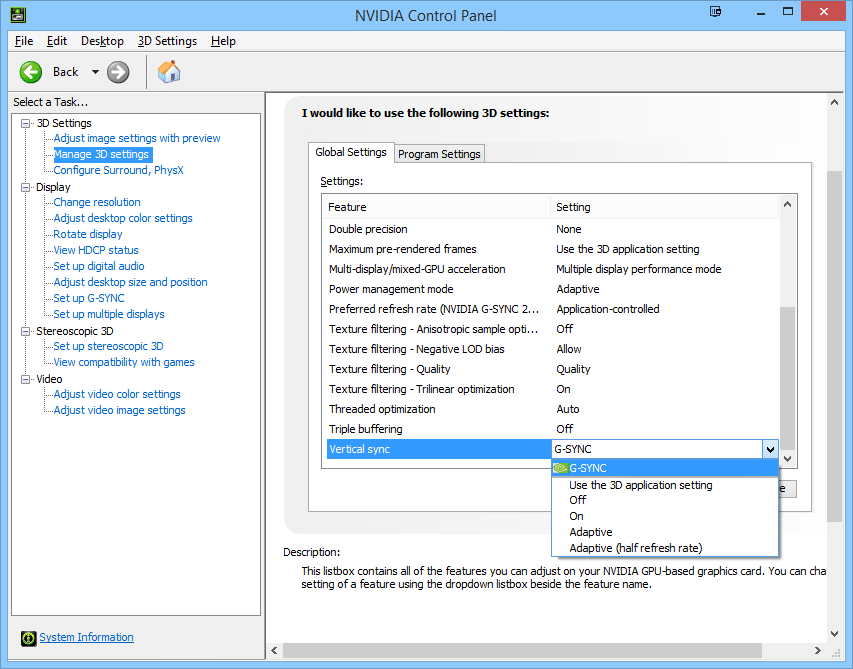 Verifying you're in G-SYNC
: While running a game, press the ULMB button and it will say "ULMB is not available in G-SYNC". If you get this message, that means you are now in G-SYNC mode.
Capping the framerate: In addition, if your game runs at a framerate too fast, try to find your games' frame rate cap to slightly below GSYNC's maximum limit, and then set the cap to approximately 140 frames per second. This often fixed unexpected stutters in certain games such as CS:GO.
GSYNC versus ULMB: As a rule of thumb, GSYNC really helped fluctuating/lower framerates, and ULMB really helped steady/high frame rates. There's a personal preference factor involved; use the appropriate mode. Enjoy!
Re: Tip: Forcing a game to use G-SYNC
Posted: 18 Jan 2014, 02:27
by nimbulan
You should also note that there's a hidden setting in game profiles that will disable variable refresh rate support. I already had to use nVidia Inspector to toggle that option for one game, though it's probably not a common problem.
Re: Tip: Forcing a game to use G-SYNC
Posted: 18 Jan 2014, 04:03
by masterotaku
One advice, from my experience: don't cap the framerate in the nvidia drivers (for example with Nvidia Inspector). It fails very hard, usually fps drop below the limit you set, at least for me. Better use in-game limiters or MSI Afterburner for that.
Maybe that fps drops can't be noticed easily or at all in a G-Sync monitor (I don't have one yet), but without G-Sync it's pretty obvious.
Re: Tip: Forcing a game to use G-SYNC
Posted: 18 Jan 2014, 11:16
by Chief Blur Buster
masterotaku wrote:One advice, from my experience: don't cap the framerate in the nvidia drivers (for example with Nvidia Inspector). It fails very hard, usually fps drop below the limit you set, at least for me. Better use in-game limiters or MSI Afterburner for that.
Maybe that fps drops can't be noticed easily or at all in a G-Sync monitor (I don't have one yet), but without G-Sync it's pretty obvious.
Driver frame rate caps almost always has the potential for more input lag than game based frame rate caps.
Re: Tip: Forcing a game to use G-SYNC
Posted: 18 Jan 2014, 13:02
by nimbulan
masterotaku wrote:One advice, from my experience: don't cap the framerate in the nvidia drivers (for example with Nvidia Inspector). It fails very hard, usually fps drop below the limit you set, at least for me. Better use in-game limiters or MSI Afterburner for that.
Maybe that fps drops can't be noticed easily or at all in a G-Sync monitor (I don't have one yet), but without G-Sync it's pretty obvious.
I've used that on a couple games so far and it seems to cap the framerate at exactly the value I set. It's much more accurate than the Source engine's limiter, for instance.
Re: Tip: Forcing a game to use G-SYNC
Posted: 18 Jan 2014, 13:21
by masterotaku
nimbulan wrote:
I've used that on a couple games so far and it seems to cap the framerate at exactly the value I set. It's much more accurate than the Source engine's limiter, for instance.
If by "that" you mean MSI Afterburner + RTSS (latest beta is compatible with 64bit programs

), then yes. It caps exactly at the fps I set. I'd like to be able to write decimals, though. I always feel the need to know what fps I'm getting, and temperatures, etc. I've always that program on.
To tell you the truth, I don't usually cap fps using in-game options (or ini options, except for Fallout New Vegas). My global profile in RTSS is set to limit all things to 75fps, unless I make exceptions, like for emulators.
Re: Tip: Forcing a game to use G-SYNC
Posted: 18 Jan 2014, 14:05
by nimbulan
masterotaku wrote:nimbulan wrote:
I've used that on a couple games so far and it seems to cap the framerate at exactly the value I set. It's much more accurate than the Source engine's limiter, for instance.
If by "that" you mean MSI Afterburner + RTSS (latest beta is compatible with 64bit programs
), then yes. It caps exactly at the fps I set. I'd like to be able to write decimals, though. I always feel the need to know what fps I'm getting, and temperatures, etc. I've always that program on.
To tell you the truth, I don't usually cap fps using in-game options (or ini options, except for Fallout New Vegas). My global profile in RTSS is set to limit all things to 75fps, unless I make exceptions, like for emulators.
I mean the driver limiter. I set 60 fps in the drivers and MSI Afterburner shows exactly 60 fps when I test it.
Re: Tip: Forcing a game to use G-SYNC
Posted: 19 Jan 2014, 14:47
by Chief Blur Buster
nimbulan wrote:
I mean the driver limiter. set 60 fps in the drivers and MSI Afterburner shows exactly 60 fps when I test it.
Driver frame limiters can fix a lot of problems but they will have more lag than game frame rate-cappers. Where possible, try to limit frame rates via the game, not via the drivers, unless there is no choice.
Re: Tip: Forcing a game to use G-SYNC
Posted: 19 Jan 2014, 15:09
by nimbulan
Chief Blur Buster wrote:nimbulan wrote:
I mean the driver limiter. set 60 fps in the drivers and MSI Afterburner shows exactly 60 fps when I test it.
Driver frame limiters can fix a lot of problems but they will have more lag than game frame rate-cappers. Where possible, try to limit frame rates via the game, not via the drivers, unless there is no choice.
Fortunately, the only games I know of that require this due to using strict 60 frames = 1 second timing aren't going to be affected by input lag enough to matter. I'd have no reason to use this feature otherwise.