Re: ⚡Intel/AMD Fix desync, input lag, heavy car bug, etc *FINAL UPDATE*⚡
Posted: 06 Jan 2025, 13:13
Who you gonna call? The Blur Busters! For Everything Better Than 60Hz™
https://forums.blurbusters.com/
You're saying to try to stay you jedec/base ram clocks or downclock xmp ?Z3CrosS wrote: ↑06 Jan 2025, 13:57Truth is - i dont know, i mean that i dont have time for everything, it was just a proposal because paging is very complex thing and related to ram management, so if you can decrease page fault you can increase PC smoothness. Naporitan did great job and spent so much time i think testing and creating this article. I think his goal is to make a big one Article to make aka "all in one / all included" in one place to help people with legit things. That's why i decided to propose about paging, its huge work and do not expect 20-50% page fault decrease, but each % will give you % to PC smoothness, hypotetically direct or indirect things could lead for decreasing page faults. So i think it reasonable to try.
P.s on a hardware level i can advise to lower timings because timings lead to smoothness, 9000k mhz ram lead to raw performance (if you feel that on your system 300 monitor hertz feels worst than 240, so try to remove ram mhz OC and watch on better on lower timings and after that, on 240hz theoretically will be better experience). Sure must be balance and stability, so you have to catch it for your system. If you like your system, sure i can advise obvious thing - ram with better timings with 6k - 6400mhz, nowadays i think T-Create expert cl30 - is best affordable Ram, the best is Dominator Titanium ofc
I just decided to share my toughts and i think that on a software level you can improve ram management which could lead to decreasing page faults and vice versa.
My Secure Boot state comes off, "PCR7 Configuration - Elevation Required to View", "Device Encryption Support - Elevation Required to View"naporitan wrote: ↑24 Nov 2024, 07:33
Hi everyone, I've written a short guide on how to prepare a system based on AMD Ryzen processor for competitive FPS games, without any schizo-tweaks, like disabling HPET, etc.
(I highly recommend doing everything according to the point of this guide. If something is not specified in the guide, then I do not do these actions, because they are useless or harmful to the game expirience. For example: You want to change the system's power plan, and you don't need to do that...).
1 - Update BIOS to the latest version, after clear CMOS. Recommended bios settings: CSM support - disabled, Secure Boot - Enabled/standart/UEFI (Before installing a new system I recommend to reset the keys to default), TPM - enabled. (Should be enabled by default and before installing a new system I recommend to set “TPM clear” in pending operation), XMP - enabled. SVM - Disabled. Resize Bar - disabled. I also do not recommend to connect RGB coolers via USB (more about this later).
2 - Before installing the system, I recommend formatting and converting your main disk for the system: 1, 2.
3 - 0.1 - After completing the system installation and connecting the internet to your PC, I recommend setting the network mode to “Public”, and in the time settings set your region/city and click on synchronize. 0.2 - Next you need to update the system through settings, and install optional drivers/updates - this is extremely important! 0.3 - After updating the system, launch Microsoft Store and update all applications; this is necessary so that nothing will be downloaded in the background in the future, and it is important to have up-to-date versions (Xbox Game Bar, DVR link). 0.4 - The next step is to download drivers from the official motherboard website and install them (this is important).
(
4 - Let's get to installing and configuring your video card: I strongly recommend not uninstalling the driver using the DDU utility. Just download a fresh driver from the official website of the video card manufacturer, run the installer by selecting the video driver and experience/app package and install it by checking the “clean install” box. (
5 -
Disable VSync in NVIDIA Contro Panel
Power management mode - Prefer maximum performance
Disable GSync technology, etc. in your monitor settings.
Disable HAGS in the system settings. link
6 -
Set mouse debounce time to 0-1ms.
7 -
I highly recommend using Firefox browser with default settings instead of Chrome, as this browser has some fundamental issues affecting the system.
8 -
9 -
theory about NVIDIA REFLEX:
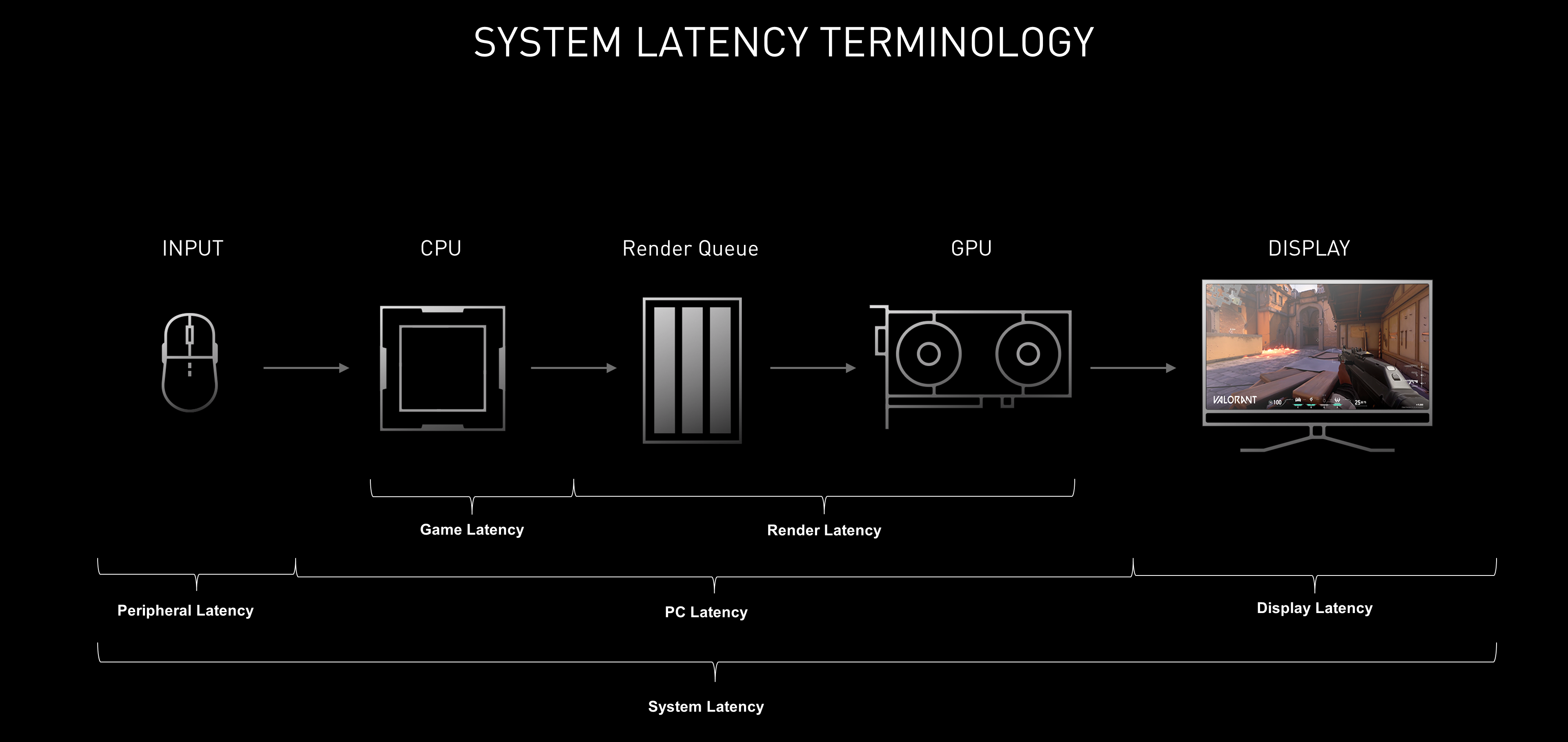
When we turn the steering wheel, press the pedals, press the buttons, all this and more is sent to the CPU for processing, then the CPU prepares frames and through the rendering queue passes them to the video card for processing, the video card sends the frames to the monitor. In ideal conditions the CPU transmits frame by frame to the GPU, and the latter in its turn processes these frames immediately without queue and sends them to the monitor. But in reality such a perfect balance between the GPU and CPU is rare.
If performance is bottlenecked by the CPU, i.e. when the CPU needs more time to prepare a frame than the GPU is able to process, then Reflex can't help in this case, because the GPU finishes its work and does nothing, waiting for the CPU to send the next frame.
When the performance is bottlenecked by the GPU, it turns out that the CPU produces frames faster (more) than the GPU can use, resulting in a lot of frames in the render queue that the GPU has to process - to select the latest ones.
In this case Reflex acts as a messenger between the GPU and the CPU, telling the CPU when the graphics card is ready for a new frame. As a result, the CPU does less work creating extra frames that will never be used, and the GPU has to sort through fewer outdated frames. In sum, Reflex reduces the number of frames in the render queue, which allows for faster visual information about your own actions - steering wheel movements, pedal presses, in general, input latency is reduced.
According to some rumors, it may be installed in computer clubs to watch YouTube, etc.)
Code: Select all
Additional system settings for convenience not affecting the expirience of the game.

1. In mouse settings I recommend unticking “Enable increased accuracy of pointer setting”.
2. Disable key sticking and input filtering in system settings/special features.
3. Check “No action required” when using the computer for conversations in the sound settings. (Increase the microphone level if the default level is low)
4. In the keyboard settings, reduce the delay before the repeat starts.
5. Disable OneDrive on startup using Task Manager
My computer is not grounded. I live in a very old house with aluminum wiring and I don't get any abnormal input lags. The whole theory about the influence of electrical/EMI/RFI interference on input lag is nonsense.
.
Blacklist of tweakers and custom systems:
valleyofdoom / boringboredom / calypto / astrocrew / airo pc tuning / ice x tunerz / amit / etc
atlasos / revios / ggos / xos / kirbyos / etc
viewtopic.php?t=11799 *bad guide/tweaks*
viewtopic.php?t=10724 *bad guide/tweaks*
General recommendations:
1 — Don't buy Razer mice (they have sensor defects and stupid imposition of their software). 2 — Better look at Lamzu atlantis, a good budget mouse at the top segment level. 3 — I don't recommend buying cheap mechanical keyboards, since the Key scan rate can be low. 4 — Try to buy a top segment motherboard, since they have a good element base. 5 —
My computer without a case lies on a glass skypad mat and without coolers, since it turns out to be something like an open stand.my pc:
cpu - ryzen 9 5950x
motherboard - asus rog crosshair vi extreme
water cooling - arctic cooling liquid Freezer II - 420
ram - gskill trident z royal 3600mhz cl14
gpu - msi rtx 3090 suprim x 24gb
ssd - samsung 970 evo plus 500gb
psu - super flower leadex titanium 850W
os - windows 10 home x64
aida64 - https://imgur.com/9DCLffv
Once a month I blow off the dust with compressed air and that’s it.
rtx 3090 +5950x heats the room very well, my radiator is cold all winter
Your system must be set up clearly as his tool, but you must be clear as well - chill.
 I highly recommend using Firefox browser with default settings instead of Chrome, as this browser has some fundamental issues affecting the system.
 My computer is not grounded. I live in a very old house with aluminum wiring and I don't get any abnormal input lags. The whole theory about the influence of electrical/EMI/RFI interference on input lag is nonsense.
 .
. Blacklist of tweakers and custom systems:
 General recommendations:
 , my radiator is cold all winter
