ASUS VG259QM Blur

Everything about displays and monitors. 120Hz, 144Hz, 240Hz, 4K, 1440p, input lag, display shopping, monitor purchase decisions, compare, versus, debate, and more. Questions? Just ask!
newbworld
Posts: 8
Joined: 03 Aug 2023, 00:02

Re: ASUS VG259QM Blur

Post by newbworld » 08 Aug 2023, 21:52

jorimt wrote:
08 Aug 2023, 12:12
jorimt wrote:
08 Aug 2023, 10:19
Nope, not other than the "solutions" I mentioned in my previous reply to you, again, assuming your stated issue is indeed stroboscopic effect and not some other characteristic you're conflating it with on the S2522HG.
As I said previously, make sure that your issue is actually the stroboscopic effect before you start returning/purchasing more monitors, because if you misdiagnose, you may end up needlessly going through several monitors that have the same issue to varying degrees.
What characteristics do you mean?
These are the videos I recorded, isn't there the stroboscopic effect?
They are very noticeable on my end, and yes, enabling motion blur can help,
but it also creates another kind of blur that makes me nauseous and dizzy.

https://streamable.com/xpxn3g
https://streamable.com/cpv3bn
https://streamable.com/oqtqv6
https://streamable.com/t02r1u
https://streamable.com/1qitg9

game settings
The frame rate in game is around 100+
Monitor refresh rate set to 240hz with G-sync enabled
I thought this would make the strobe even more noticeable?

also I can see the same stroboscopic effect on youtube watching people play apex or valorant.

or is there a problem with my rtx 2070?

User avatar
jorimt
Posts: 2634
Joined: 04 Nov 2016, 10:44
Location: USA

Re: ASUS VG259QM Blur

Post by jorimt » 09 Aug 2023, 08:35

newbworld wrote:
08 Aug 2023, 21:52
What characteristics do you mean?
You can experience image persistence (due to non-strobed sample-and-hold), overdrive artifacts (such as inverse ghosting/overshoot due to too much or little overvolting of native GtG), and stroboscopic effect (image doubling due to finite frame + refresh rates + rapid panning speed) all at the same time.
newbworld wrote:
08 Aug 2023, 21:52
These are the videos I recorded, isn't there the stroboscopic effect?
Hard to fully tell by viewing a video of a camera recording your monitor played back on my own display, but your panning speed isn't quite high enough for it to be full-on stroboscopic effect, which is much more apparent during very rapid motion.

It potentially looks more like a mix of persistence and overshoot to me. Have you tried non-G-SYNC-mode, and if so, have you attempted to lower the overdrive preset?

Because the S2522HG is a G-SYNC Compatible FreeSync display. As such, it almost certainly doesn't support variable overdrive, meaning it will lock your overdrive preset to a static value in VRR-mode, where overdrive ghosting will be more evident the lower the framerate is within the refresh rate since that static value will then be too strong for said framerate.
newbworld wrote:
08 Aug 2023, 21:52
or is there a problem with my rtx 2070?
GPUs can't cause any of these display-side issues directly. The capability of the GPU determines the maximum achievable average framerate, however, which can have a direct effect on how noticeable said issues are.
(jorimt: /jor-uhm-tee/)
Author: Blur Busters "G-SYNC 101" Series

Displays: ASUS PG27AQN, LG 48C4 Scaler: RetroTINK 4k Consoles: Dreamcast, PS2, PS3, PS5, Switch 2, Wii, Xbox, Analogue Pocket + Dock VR: Beyond, Quest 3, Reverb G2, Index OS: Windows 11 Pro Case: Fractal Design Torrent PSU: Seasonic PRIME TX-1000 MB: ASUS Z790 Hero CPU: Intel i9-13900k w/Noctua NH-U12A GPU: GIGABYTE RTX 4090 GAMING OC RAM: 32GB G.SKILL Trident Z5 DDR5 6400MHz CL32 SSDs: 2TB WD_BLACK SN850 (OS), 4TB WD_BLACK SN850X (Games) Keyboards: Wooting 60HE, Logitech G915 TKL Mice: Razer Viper Mini SE, Razer Viper 8kHz Sound: Creative Sound Blaster Katana V2 (speakers/amp/DAC), AFUL Performer 8 (IEMs)

newbworld
Posts: 8
Joined: 03 Aug 2023, 00:02

Re: ASUS VG259QM Blur

Post by newbworld » 09 Aug 2023, 10:16

jorimt wrote:
09 Aug 2023, 08:35
You can experience image persistence (due to non-strobed sample-and-hold), overdrive artifacts (such as inverse ghosting/overshoot due to too much or little overvolting of native GtG), and stroboscopic effect (image doubling due to finite frame + refresh rates + rapid panning speed) all at the same time.
I'm pretty sure it's not an image persistence issue, since I have VRR enabled, the monitor has 3 different overdrive settings, fast, super fast and extreme, I use the first one because it doesn't have overshoot/ghosting. The second one, super fast, is also good, with very little inverse ghosting, the last one, extreme level, producing very noticeable overshoot artifacts. So I don't think it's an overdrive issue.
jorimt wrote:
09 Aug 2023, 08:35
Hard to fully tell by viewing a video of a camera recording your monitor played back on my own display, but your panning speed isn't quite high enough for it to be full-on stroboscopic effect, which is much more apparent during very rapid motion.

It potentially looks more like a mix of persistence and overshoot to me. Have you tried non-G-SYNC-mode, and if so, have you attempted to lower the overdrive preset?

Because the S2522HG is a G-SYNC Compatible FreeSync display. As such, it almost certainly doesn't support variable overdrive, meaning it will lock your overdrive preset to a static value in VRR-mode, where overdrive ghosting will be more evident the lower the framerate is within the refresh rate since that static value will then be too strong for said framerate.
yes, that's the weird part which I wonder the most. why is the transition acting like that when it shouldn't even happen.

Non-G-SYNC mode is unbearable as there is a lot of tearing all over the place. So I can't turn it off, it doesn't make any difference whether VRR is enabled or not.
jorimt wrote:
09 Aug 2023, 08:35
GPUs can't cause any of these display-side issues directly. The capability of the GPU determines the maximum achievable average framerate, however, which can have a direct effect on how noticeable said issues are.
I hope some S2522HG users share their experiences here, as it's hard to tell if it's my eyes problem or the monitor or the gpu...

User avatar
jorimt
Posts: 2634
Joined: 04 Nov 2016, 10:44
Location: USA

Re: ASUS VG259QM Blur

Post by jorimt » 09 Aug 2023, 10:32

newbworld wrote:
09 Aug 2023, 10:16
I'm pretty sure it's not an image persistence issue, since I have VRR enabled
VRR does not prevent image persistence, which, again, is due to the sample-and-hold (aka non-strobing) nature of LCD displays, and has a similar appearance to the stroboscopic effect during slower panning, is more evident the faster the pixel response times (GtG)/the less overdrive artifacts, and can only be reduced by strobing/BFI (or extremely high framerate/refresh rate ratios).
newbworld wrote:
09 Aug 2023, 10:16
the monitor has 3 different overdrive settings, fast, super fast and extreme, I use the first one because it doesn't have overshoot/ghosting. The second one, super fast, is also good, with very little inverse ghosting, the last one, extreme level, producing very noticeable overshoot artifacts. So I don't think it's an overdrive issue.
So I take it all three presets are selectable when G-SYNC is enabled as well?

Regardless, even if they are, whatever overdrive preset you select will still only be tuned statically for the max refresh rate, so ghosting will increase the lower the framerate with VRR on a FreeSync display without variable overdrive, hence the reason I asked if you tested with no-sync or standalone V-SYNC in the same scenario to see if it had any effect on the artifacts (but it sounds like you already did, at least with V-SYNC off).

Also, I don't know what game that is off-hand, but be sure to rule out any in-game TAA ghosting artifacts as well, which can look similar.
(jorimt: /jor-uhm-tee/)
Author: Blur Busters "G-SYNC 101" Series

Displays: ASUS PG27AQN, LG 48C4 Scaler: RetroTINK 4k Consoles: Dreamcast, PS2, PS3, PS5, Switch 2, Wii, Xbox, Analogue Pocket + Dock VR: Beyond, Quest 3, Reverb G2, Index OS: Windows 11 Pro Case: Fractal Design Torrent PSU: Seasonic PRIME TX-1000 MB: ASUS Z790 Hero CPU: Intel i9-13900k w/Noctua NH-U12A GPU: GIGABYTE RTX 4090 GAMING OC RAM: 32GB G.SKILL Trident Z5 DDR5 6400MHz CL32 SSDs: 2TB WD_BLACK SN850 (OS), 4TB WD_BLACK SN850X (Games) Keyboards: Wooting 60HE, Logitech G915 TKL Mice: Razer Viper Mini SE, Razer Viper 8kHz Sound: Creative Sound Blaster Katana V2 (speakers/amp/DAC), AFUL Performer 8 (IEMs)

newbworld
Posts: 8
Joined: 03 Aug 2023, 00:02

Re: ASUS VG259QM Blur

Post by newbworld » 09 Aug 2023, 17:19

jorimt wrote:
09 Aug 2023, 10:32
VRR does not prevent image persistence, which, again, is due to the sample-and-hold (aka non-strobing) nature of LCD displays, and has a similar appearance to the stroboscopic effect during slower panning, is more evident the faster the pixel response times (GtG)/the less overdrive artifacts, and can only be reduced by strobing/BFI (or extremely high framerate/refresh rate ratios).
does change a different display help? because it is so obvious on my end.
jorimt wrote:
09 Aug 2023, 10:32
So I take it all three presets are selectable when G-SYNC is enabled as well?

Regardless, even if they are, whatever overdrive preset you select will still only be tuned statically for the max refresh rate, so ghosting will increase the lower the framerate with VRR on a FreeSync display without variable overdrive, hence the reason I asked if you tested with no-sync or standalone V-SYNC in the same scenario to see if it had any effect on the artifacts (but it sounds like you already did, at least with V-SYNC off).

Also, I don't know what game that is off-hand, but be sure to rule out any in-game TAA ghosting artifacts as well, which can look similar.
I tested all above(with G-Sync on/off, V-Sync on/off, VRR on/off) and they all have that stroboscopic effects.
I also tried to use the Scanline Sync, however the Tearline just jetting everywhere so it can't be done.

User avatar
jorimt
Posts: 2634
Joined: 04 Nov 2016, 10:44
Location: USA

Re: ASUS VG259QM Blur

Post by jorimt » 09 Aug 2023, 19:48

newbworld wrote:
09 Aug 2023, 17:19
does change a different display help? because it is so obvious on my end.
Ultimately only you can answer that, because whatever you are seeing is bothering you.

I see limitations in my own displays all the time (including the stroboscopic effect, even with the fastest 360Hz 1440p monitor currently available), and I simply have to accept it because I know how these things work, and thus why they don't often reach my expectations in one way or another.

You'd have to try another display with equivalent specs to rule out whether it is the more apparent stroboscopic effect due to faster pixel response times and less overdrive artifacts that's bothering you, or if it's some other defect with your particular display model (which I doubt).
newbworld wrote:
09 Aug 2023, 17:19
I tested all above(with G-Sync on/off, V-Sync on/off, VRR on/off) and they all have that stroboscopic effects.
I also tried to use the Scanline Sync, however the Tearline just jetting everywhere so it can't be done.
You should still see the stroboscopic effect with tearing. But I think it's safe to say you've ruled out pretty much all you can beyond trying another display.

It may come down to the fact that what you're "used to" = superior, and anything that is actually "better" = worse to you.

Many people who have been using slower LCDs for years and have then switched to a much faster LCD or OLED have had similar complaints; displays with faster pixel response times reveal more motion flaws, just like higher resolution displays reveal more flaws in the lower resolution content that looked "fine" on older displays.

Like I had said to the OP in this topic, I don't have much else to add beyond that at this point for your situation now either (and I probably should have split this into its own topic *shrugs*).

That said, feel free to share your impressions here if you end up trying another display.
(jorimt: /jor-uhm-tee/)
Author: Blur Busters "G-SYNC 101" Series

Displays: ASUS PG27AQN, LG 48C4 Scaler: RetroTINK 4k Consoles: Dreamcast, PS2, PS3, PS5, Switch 2, Wii, Xbox, Analogue Pocket + Dock VR: Beyond, Quest 3, Reverb G2, Index OS: Windows 11 Pro Case: Fractal Design Torrent PSU: Seasonic PRIME TX-1000 MB: ASUS Z790 Hero CPU: Intel i9-13900k w/Noctua NH-U12A GPU: GIGABYTE RTX 4090 GAMING OC RAM: 32GB G.SKILL Trident Z5 DDR5 6400MHz CL32 SSDs: 2TB WD_BLACK SN850 (OS), 4TB WD_BLACK SN850X (Games) Keyboards: Wooting 60HE, Logitech G915 TKL Mice: Razer Viper Mini SE, Razer Viper 8kHz Sound: Creative Sound Blaster Katana V2 (speakers/amp/DAC), AFUL Performer 8 (IEMs)

newbworld
Posts: 8
Joined: 03 Aug 2023, 00:02

Re: ASUS VG259QM Blur

Post by newbworld » 10 Aug 2023, 23:01

jorimt wrote:
09 Aug 2023, 19:48
Many people who have been using slower LCDs for years and have then switched to a much faster LCD or OLED have had similar complaints; displays with faster pixel response times reveal more motion flaws, just like higher resolution displays reveal more flaws in the lower resolution content that looked "fine" on older displays.
I took the ufo motion test here
there is no ghosting/inverse ghosting as far as I can see.

however you say it could be image persistence issue since this is a nature of the LCD monitors.

I hate strobed monitors very much as I can feel the black frame flickering between images while the sample-and-hold monitors create stroboscopic effect which bothers me very much.

this monitor use White LED edgelight system so it should also have Backlight flickering problem?

also most first-person games I usually play stay 100~110 FPS, it's unrealistic to keep up the frame rate with high refresh rate the monitor have, its also unrealistic to maintain the higher frame rate above refresh rate to compensate since it only creates severe tearing issue.

This seems like a dead end to me. :(


I found this thread by accident, does it mean the implused OLED won't have any Stroboscopic effect?

Chief Blur Buster wrote:
14 Jun 2023, 23:57
Don't confuse display "motion blur" with the "stroboscopic effect". Fixing OLED motion blur never fixes the stroboscopic-stepping effect.

There are multiple possible causes:

1. Are you currently running in pulsed/BFI operation?
If so, try switching to framerate=Hz. Increase your framerate or lower your refreshrate, to make sure the BFI pulsing matches the refresh rate and the frame rate. This will solve the eye-tracked double-image effect (moving eyes tracking moving imagery), this is the same cause as the old double image effect at CRT 30fps at 60Hz.

-OR-

2. Turn on the GPU Motion Blur Effect if you hate the stroboscopic stepping effect (stationary eye, moving imagery). Keep in mind, there is an additional factor, The Stroboscopic Effect of Finite Frame Rates.
This is generally unfixable at current contemporary refresh rates and frame rates without using the GPU Blur Effect setting.

Also, if you're seeing more stutters on OLED than LCD at the same settings (same sync technology, same frame rate, same resolution, same GPU) -- keep in mind slow pixel response hides stutters in the past, this is why OLED stutters more at the same frame rate than LCD does, EXPLAINER: Why Does OLED Stutter More At Low Frame Rates?

Solving some of this this usually requires triple-digit frame rates (>100fps+), so try to run your games at higher frame rates while your display is configured to 120Hz. You may also wish to have G-SYNC turned on, since that produces smoother visuals. For some solo games, you may wish to upgrade your GPU to a 3000-series or 4000-series, and turn off RTX, while turning on DLSS to a "Performance" setting, to get frame rates really high.
So the only thing I can do is switch to OLED? but why you say it's even worse? because it generate more phantoms due to extreme response time while moving left and right? aren't they invisible because we can't tell from human eyes?

User avatar
jorimt
Posts: 2634
Joined: 04 Nov 2016, 10:44
Location: USA

Re: ASUS VG259QM Blur

Post by jorimt » 11 Aug 2023, 08:43

newbworld wrote:
10 Aug 2023, 23:01
I took the ufo motion test here
there is no ghosting/inverse ghosting as far as I can see.
Increase the speed; TestUFO patterns start at a relatively low scrolling speed that won't always replicate the same issues you'll see in-game.

TestUFO also is running at a fixed frame and refresh rate, so you can't test variable framerate VRR overdrive performance with it.
newbworld wrote:
10 Aug 2023, 23:01
however you say it could be image persistence issue since this is a nature of the LCD monitors.

I hate strobed monitors very much as I can feel the black frame flickering between images while the sample-and-hold monitors create stroboscopic effect which bothers me very much.
Strobed monitors reduce image persistence, they do not eliminate the stroboscopic effect.
newbworld wrote:
10 Aug 2023, 23:01
this monitor use White LED edgelight system so it should also have Backlight flickering problem?
Not sure what you mean? Things like PWM flicker aren't directly related to the stroboscopic effect.
newbworld wrote:
10 Aug 2023, 23:01
also most first-person games I usually play stay 100~110 FPS, it's unrealistic to keep up the frame rate with high refresh rate the monitor have, its also unrealistic to maintain the higher frame rate above refresh rate to compensate since it only creates severe tearing issue.

This seems like a dead end to me. :(
You can't ultimately remove the stroboscopic effect with currently achievable frame/refresh rates, only reduce it, and only at limited scrolling speeds; even if you had a 1000Hz monitor running at 1000 FPS, the effect could still hypothetically be triggered again at fast enough scrolling speeds.

As I mentioned previously, I have a 360Hz monitor (with extremely low GtG/overdrive artifacts), and I can still see the effect at 360 FPS during faster pans, even when I have strobing enabled.
newbworld wrote:
10 Aug 2023, 23:01
I found this thread by accident, does it mean the implused OLED won't have any Stroboscopic effect?
It would still have the effect, which again, as I noted earlier, is even more obvious on OLED due to it's virtually instantaneous GtG vs. even the fastest LCD gaming displays.

You can't escape the stroboscopic effect. If you're going to use the latest modern gaming displays, you'll "suffer" the faster pixel response times that reveal the inherit content limitations that were once partially masked by the inferior motion performance of older, slower displays.

Don't know what else to tell you beyond moving back to an older lower Hz display with higher GtG.
(jorimt: /jor-uhm-tee/)
Author: Blur Busters "G-SYNC 101" Series

Displays: ASUS PG27AQN, LG 48C4 Scaler: RetroTINK 4k Consoles: Dreamcast, PS2, PS3, PS5, Switch 2, Wii, Xbox, Analogue Pocket + Dock VR: Beyond, Quest 3, Reverb G2, Index OS: Windows 11 Pro Case: Fractal Design Torrent PSU: Seasonic PRIME TX-1000 MB: ASUS Z790 Hero CPU: Intel i9-13900k w/Noctua NH-U12A GPU: GIGABYTE RTX 4090 GAMING OC RAM: 32GB G.SKILL Trident Z5 DDR5 6400MHz CL32 SSDs: 2TB WD_BLACK SN850 (OS), 4TB WD_BLACK SN850X (Games) Keyboards: Wooting 60HE, Logitech G915 TKL Mice: Razer Viper Mini SE, Razer Viper 8kHz Sound: Creative Sound Blaster Katana V2 (speakers/amp/DAC), AFUL Performer 8 (IEMs)

User avatar
Chief Blur Buster
Site Admin
Posts: 12102
Joined: 05 Dec 2013, 15:44
Location: Toronto / Hamilton, Ontario, Canada
Contact:

Re: ASUS VG259QM Blur

Post by Chief Blur Buster » 11 Aug 2023, 20:33

newbworld wrote:
10 Aug 2023, 23:01
I found this thread by accident, does it mean the implused OLED won't have any Stroboscopic effect?
Take a look at this, displays look different depending on stationary eye versus moving eyes:

www.testufo.com/eyetracking#speed=-1

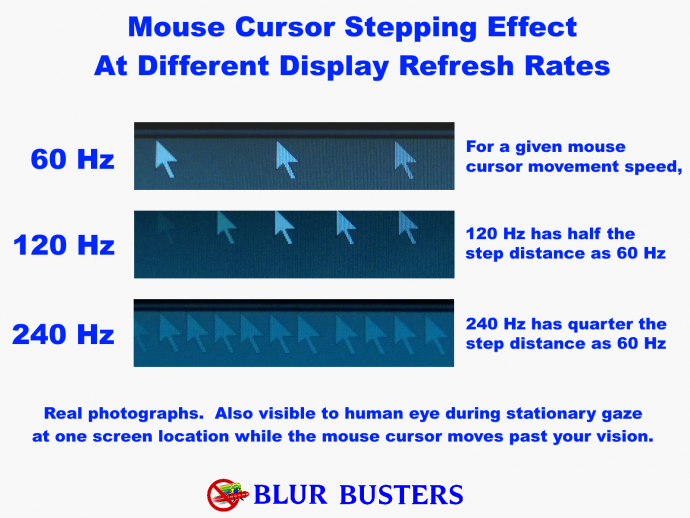

Look at the 2nd UFO for 30 seconds. Observe how it stutters at low frame rates, and blurs at high frame rates. But you always see 'stutter' / stroboscopics (of the 2nd UFO) if you stare only at 1st UFO. So the stroboscopic effect appears/disappears depending on what your eyes are doing.

Doesn't matter. Stroboscopic effect is caused by a finite frame rate, no matter what the display settings are.
Image

Image

See this article:

The Stroboscopic Effect of Finite Frame Rates

To solve this,
1. Keep frame rates as high as possible
AND
2. Turn on GPU Motion Blur Effect in your game.

In my experience (with my own eyes), the best stroboscopic-fixer display that stays (relatively) low blur is a 240Hz OLED + RTX 4090 + DLSS3 + GPU Blur Effect.

Much, much better. Still less motion blur than a 144Hz LCD + GPU Blur Effect Disabled. The GPU Blur Effect simulates a slower GtG, but then you get to keep the benefits of OLED and reduced display motion blur.

This is because the 240Hz 240fps is enough brute framrate based motion blur reduction, that re-enabling GPU blur effect (to kill the stroboscopics) still doesn't add back enough blur to worsen it back to a 120-144Hz LCD! So a "partial win-win", as long as you can render enough frame rate and stick to ultra high framerate games that lets you enable the GPU Blur Effect.

"GPU Blur Effect" = Evil but it's an Defacto Ergonomic Accessibility Setting

It REALLY reduces eyestrain for many people -- it's amazing how much stroboscopic-eyestrain it reduces in so many people, that GPU Blur Effect is definitely a Defacto Secret Accessibility Setting much like "Reduce Motion" or other Accessibility Settings.

Turn back "GPU Blur Effect" on if you get stroboscopic-effect headache/motionsickness/nauseas without it.

OLED is temporarily worse than LCD, until you enable GPU Blur Effect, then suddenly OLED is better than LCD in the package deal of lack of stroboscopics / reduced display blur.

The problem is you:
1. Have to stick to games that spew high frame rates;
2. While letting you enable GPU blur effect.

You'll definitely want the fastest GPU with the best frame generation technology, and may need to enable DLSS3 interpolation (and tolerate its input lag). You can reduce the latency of DLSS3 interpolation via the two cap technique, and this gives you roughly a halving of display motion blur. While interpolation kind of doesn't work perfectly with GPU Blur Effect.

YMMV, since you're trying to do a few things (A) reduce display motion blur via brute framerate to vastly more than overcome the extra blur via (B) re-enabling the GPU blur effect, in order to (C) have low blur without stroboscopics.

It works. The tech is semi-here today, if you cherrypick your GPU and games. It's slightly more blurry than LightBoost, but surprisingly not by much. The grand total blur is less than 144fps 144Hz LCD (Blur Effect = OFF), and you have no stroboscopics. If you never got headache at 120fps 120Hz LCD but want an 'upgrade', now you know how to 'upgrade'!

Because you need to fix stroboscopics to fix the stroboscopics-related eyestrain/nausea/motionsickness, it won't be as low blur as 360fps 360Hz LCD (GPU Blur Effect = OFF) or 240fps 240Hz OLED (GPU Blur Effect = OFF), but it will be a massive upgrade from 144fps 144Hz LCD as a "My eyes don't get eyestrain from 144fps 144Hz LCD unstrobed" baseline.

There Are Over 100 Causes Of Eyestrain/Motionsickness/Nausea With Displays

Sadly, it is easy to misdiagnose though. It's a very easy wild goose chase.

Now if you're still getting eyestrain even with 200fps+ and GPU Blur Effect enabled -- then something else is happening -- your eyestrain isn't caused by stroboscopics, regardless of what people tell you. Many people accidentally redherring/wild goose away from the over 100+ ergonomic issues a display has (e.g. blue light, too big a display, antiglare texture, etc).

You can also try to RTSS cap to 24fps, and enable GPU Blur Effect. Some people prefer the low-framerate feel on their favourite OLED displays if they cannot do 240fps. 240Hz OLEDs can do any framerates and refresh rates from 24fps to 240fps, so you've got many tweaks while keeping other OLED benefits (e.g. colors, HDR, blacks, etc).

Another Ergonomic Problem Cause: Some people get nausea only in the territory of ~40fps(ish) - 150fps(ish) on an OLED, necessitating ultra low frame rates or ultra high frame rates (+GPU Blur). This does not affect everybody, but some people have a specific "verboten framerate" region pertaining to their specific motionsickness quirk. You can customize frame rates at www.testufo.com/framerates-versus#compare=0 and figure out your motionsickness region (blurs/stroboscopics) and this will help you figure out what frame rates bother you, and what frame rates don't, during GPU Blur Effect = OFF.


Head of Blur Busters - BlurBusters.com | TestUFO.com | Follow @BlurBusters on: BlueSky | Twitter | Facebook

Image
Forum Rules wrote:  1. Rule #1: Be Nice. This is published forum rule #1. Even To Newbies & People You Disagree With!
  2. Please report rule violations If you see a post that violates forum rules, then report the post.
  3. ALWAYS respect indie testers here. See how indies are bootstrapping Blur Busters research!

Post Reply